How to Go Into Full Screen Mode for Videos
Here’s how to make any Club Qigong video fill your whole screen, or send it to your TV. 🌟
✅ Option 1: The Full Screen button
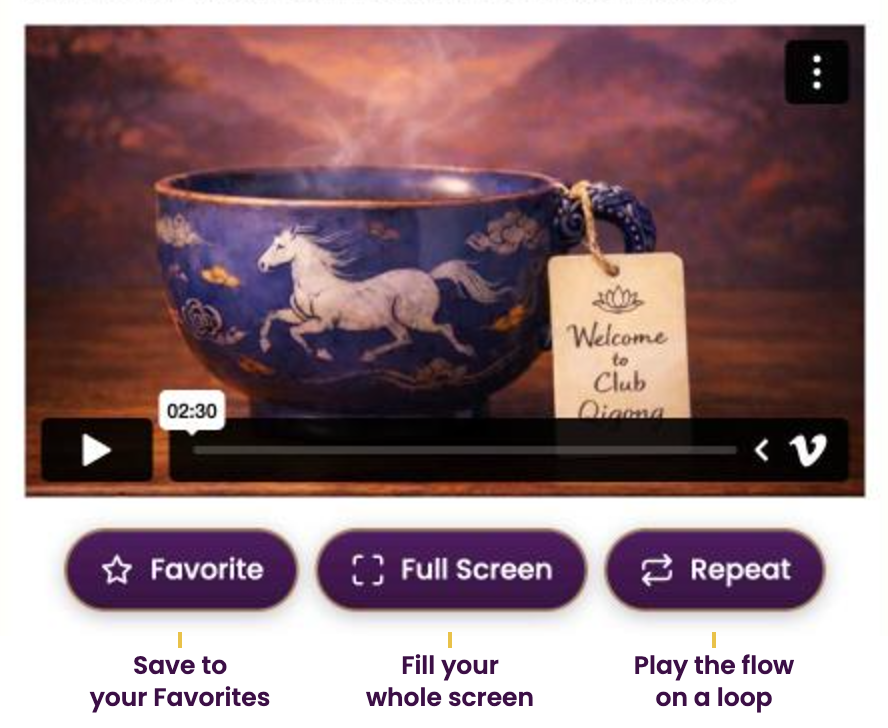
Under every video you’ll find three handy buttons. Just tap Full Screen.
✅ Option 2: While the video is playing
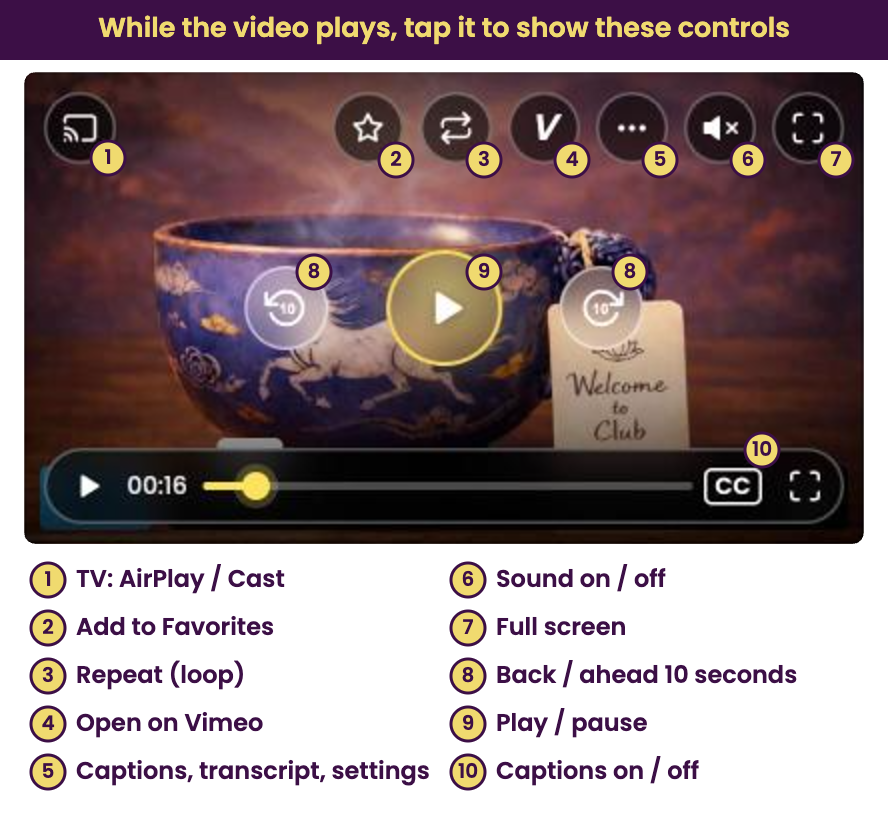
Tap the video anytime to bring up the Club Qigong controls, then tap the full screen icon in the upper right (#7). The controls fade away after a few seconds so you can enjoy the flow.
✅ Before you press play: Vimeo’s player bar
Before the video starts you’ll see Vimeo’s standard player bar. Tap the small arrow in the lower right to open the options, then tap the four outward arrows to go full screen.

💡 Not filling the screen on your phone? Make sure rotation lock is off, then turn your phone sideways.
📺 Watch on Your TV
While the video is playing, tap it and choose the TV button in the upper left (#1) to send it to your TV with Apple AirPlay or Google Chromecast. More details are here.
🔁 Bonus: tap Repeat to play a flow on a loop, perfect for practicing along.
Let us know if you have any other questions here. 🙏
Access Your Free Qigong Flow & Meditation with Joe by Joining Our Newsletter